EatHealthier
Home Screen
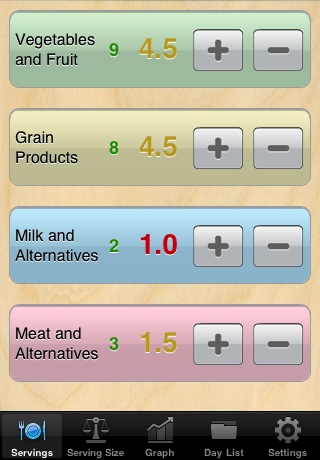
Quickly capture what you eat from the 4 food groups. Just tap a button to add a half or full serving and change the big number from red, to orange, to green. The little green number tells you how many servings you need.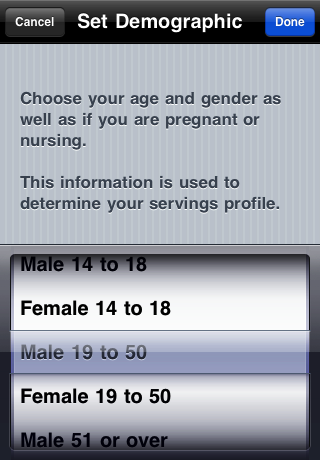
Setting the
Serving Goals
Setting the serving goals is simple. Just pick your age and gender, and if you are female, pick if you are pregnant or nursing. One selection and your goals are set.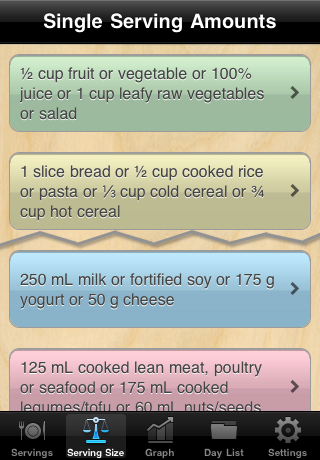
What is a Serving?
Finding a serving size is easy. Just touch the "Serving Size" tab to get general information on what makes a serving.You can view it in Standard or Metric (Touch Settings to make the change).
So make sure you get your cup or 250mL of leafy vegetables.
More Detail on Serving Size
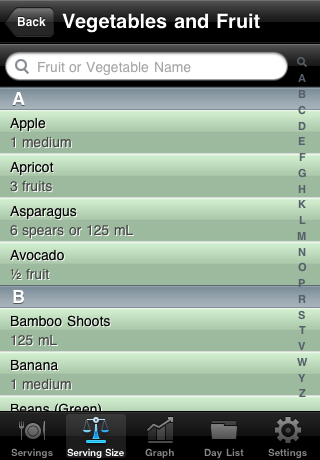
If you are still not sure about a serving size, you can touch the general information button and get a more specific lists of foods.You can scroll through the list or use the search field at the top.
Track Your Progress
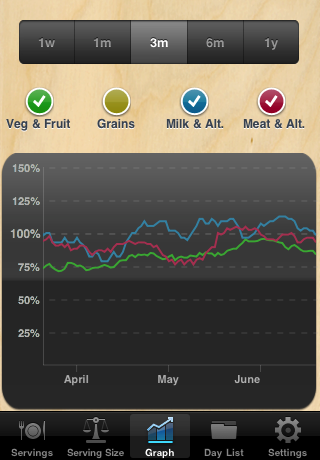
The "Graph" tab lets you look at trends in how you are eating.You can look at some or all of the lines, just touch the checked circles to hide the line, then touch the empty circle to show it again.
The different time scales help you see longer trends. You can also scroll back and forth through the data with the flick of a finger.
This graph shows a person that needs more vegetables and fruit. What will yours show?
A Place for Detail and Editing
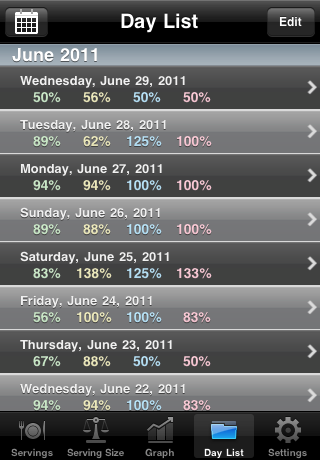
The "Day List" tab gives you access to your history. Here you can go back and view or edit previous days. You can also add and delete days.Touch the Calendar button in the top left corner to quickly scroll a date to the top of the screen. Or touch the "Edit" button to add or delete days.
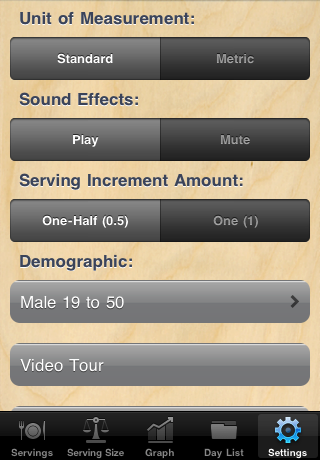
Simple Settings
Use the "Settings" tab to change a few simple settings.Here is where you choose between Standard and Metric. You can also turn on or off the cheers that accompany making a servings goal.
| Previous | Next |
Restart